
Free Scalping Bot MT4 — Download Scalper EURUSD M5 (2026)
$0.00
System: Metatrader 4,
Needed indicators: 8 indicators included,
Timeframe: M5,
Currency pair: EURUSD,
Limits by accounts: No,
You can buy FULL VERSION of this bot: Forex scalping robot
Description
Free Scalping Bot for MT4 — Download Scalper EURUSD M5 (Test Version 2026)
Looking for a free scalping bot for MT4? The Scalper EURUSD M5 is a powerful automated trading robot designed specifically for the EURUSD currency pair on the M5 timeframe. This test version allows you to download, install, and test the scalping strategy in the MetaTrader 4 Strategy Tester — completely free. In this guide, we’ll cover how the robot works, how to install it, and how to test it effectively.
1. What Is This Free Scalping Robot?
The Scalper EURUSD M5 is a free test version of an automated scalping Expert Advisor (EA) designed for MetaTrader 4 (MT4). It is specifically optimised for the EURUSD currency pair on the M5 (5-minute) timeframe.
📌 Key Definition: A scalping bot is an automated trading robot that executes many small trades to profit from tiny price movements. It typically holds positions for seconds to minutes and requires low spreads and fast execution.
Video: Scalper EURUSD M5 — overview and demonstration.
Key Specifications
- Platform: MetaTrader 4 (MT4)
- Timeframe: M5 (5 minutes)
- Currency Pair: EURUSD
- Indicators: 8 built-in indicators (ATR, Bollinger Bands, Moving Average, Heiken Ashi, Ichimoku, Linear Regression, Parabolic SAR, Pivot Points)
- Money Management: Included
- Neural Network: Light neural network for signal filtering
- Max Spread: 1.0 (10)
- Take Profit / Stop Loss: Automatic, 20 pips
- Trade Duration: 15 minutes – 16 hours
- Lot Size Range: 0.01 – 100
- Price: Free (Test Version for Strategy Tester)
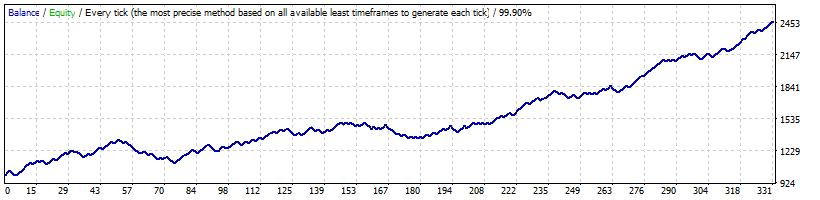
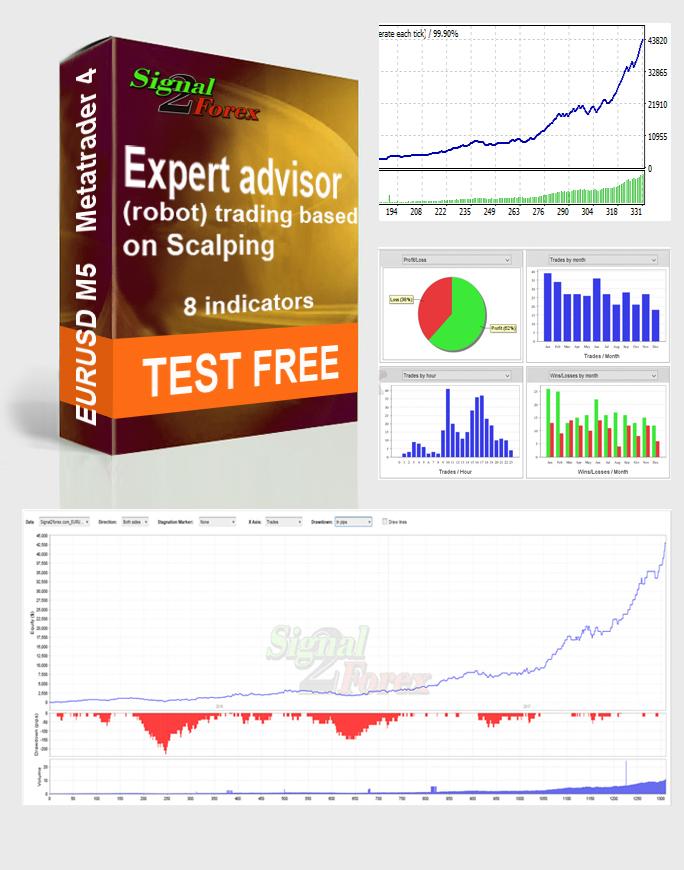
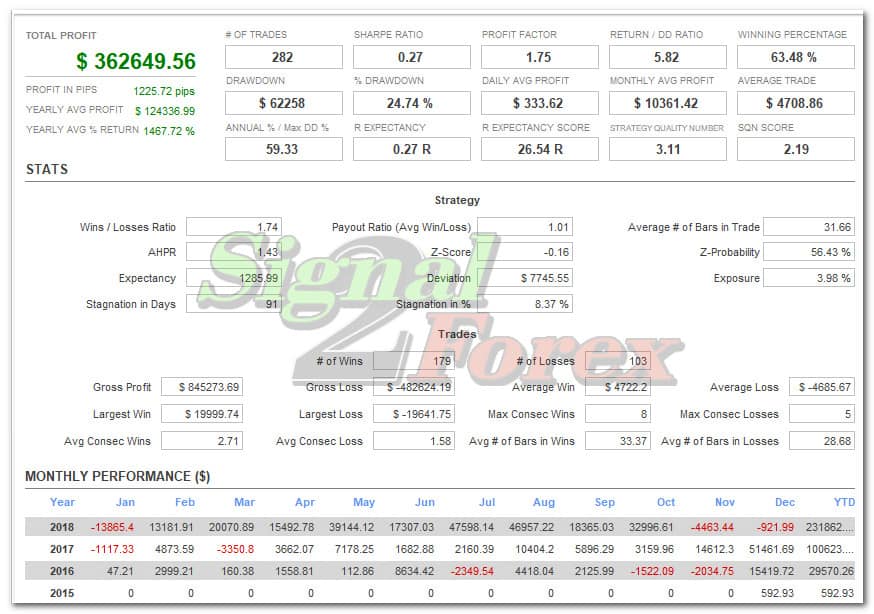
Fig 1: Scalper EURUSD M5 in action — automated scalping trades on the EURUSD M5 chart.
How the Scalping Strategy Works
The scalping strategy combines 8 technical indicators with a light neural network to filter trading signals. The robot analyses the market on the M5 timeframe and executes trades when all conditions are met:
- Entry: The robot enters a trade when the neural network confirms a high-probability scalping signal based on the 8 indicators
- Exit: Trades are closed automatically at 20 pips take-profit or stop-loss, or earlier if the neural network identifies a reversal
- Risk Management: Fixed lot sizes with the ability to adjust risk parameters
⚠️ Important: This is a test version designed for the Strategy Tester only. For live trading, please purchase the full version.
2. Best Free Scalping Robots for MT4 — Comparison
There are several free scalping robots available for MT4. Here is how the Scalper EURUSD M5 compares to other popular options:
| Robot Name | Platform | Timeframe | Currency Pair | Key Feature | Best For |
|---|---|---|---|---|---|
| Scalper EURUSD M5 | MT4 | M5 | EURUSD | 8 indicators + neural network, test version | Testing scalping strategies |
| Dark Moon EA | MT4 | Any | Any | 500+ reviews, highly configurable | Scalpers of all levels |
| Dark Venus EA | MT4 | Any | Any | Bollinger Bands + martingale | High-risk traders |
| RRS Grid Scalping | MT4 | Any | Any | Grid strategy | Grid trading enthusiasts |
| PFx Forex Scalper EA | MT4 | M1-M5 | Any | Small price fluctuations strategy | Short-term scalpers |
📌 Why Choose Scalper EURUSD M5? This robot is specifically optimised for EURUSD on M5 and uses a unique combination of 8 indicators and a neural network — making it a powerful tool for testing scalping strategies on this specific pair.
3. How to Download and Install the Scalping Bot
Follow these simple steps to download and install the Scalper EURUSD M5 on MetaTrader 4:
Step-by-Step Installation Guide
- Download the robot — add the product to your cart and complete the checkout process (price: $0.00)
- Unzip the archive — extract the downloaded zip file to access the EA and indicator files
- Open MT4 Data Folder — open MetaTrader 4, go to File → Open Data Folder
- Copy EA files — copy the
.ex4files to MQL4 → Experts - Copy indicator files — copy the indicator files to MQL4 → Indicators
- Restart MT4 — close and reopen MetaTrader 4
- Open EURUSD M5 chart — open a chart for EURUSD on the M5 timeframe
- Attach the EA — drag the EA from the Navigator panel to the chart
- Enable live trading — check “Allow live trading” in the EA settings
- Verify installation — look for the smiley face in the top-right corner of the chart
Common Installation Issues & Fixes
| Issue | Possible Cause | Solution |
|---|---|---|
| EA not appearing in Navigator | Files placed in wrong folder | Ensure .ex4 files are in MQL4/Experts, not Indicators |
| EA appears greyed out | Live trading not enabled | Check “Allow live trading” in EA settings |
| No smiley face | EA not properly attached or disabled | Restart MT4 and re-attach the EA to the chart |
| Indicators not loading | Indicator files not in correct folder | Ensure all indicator files are in MQL4/Indicators |
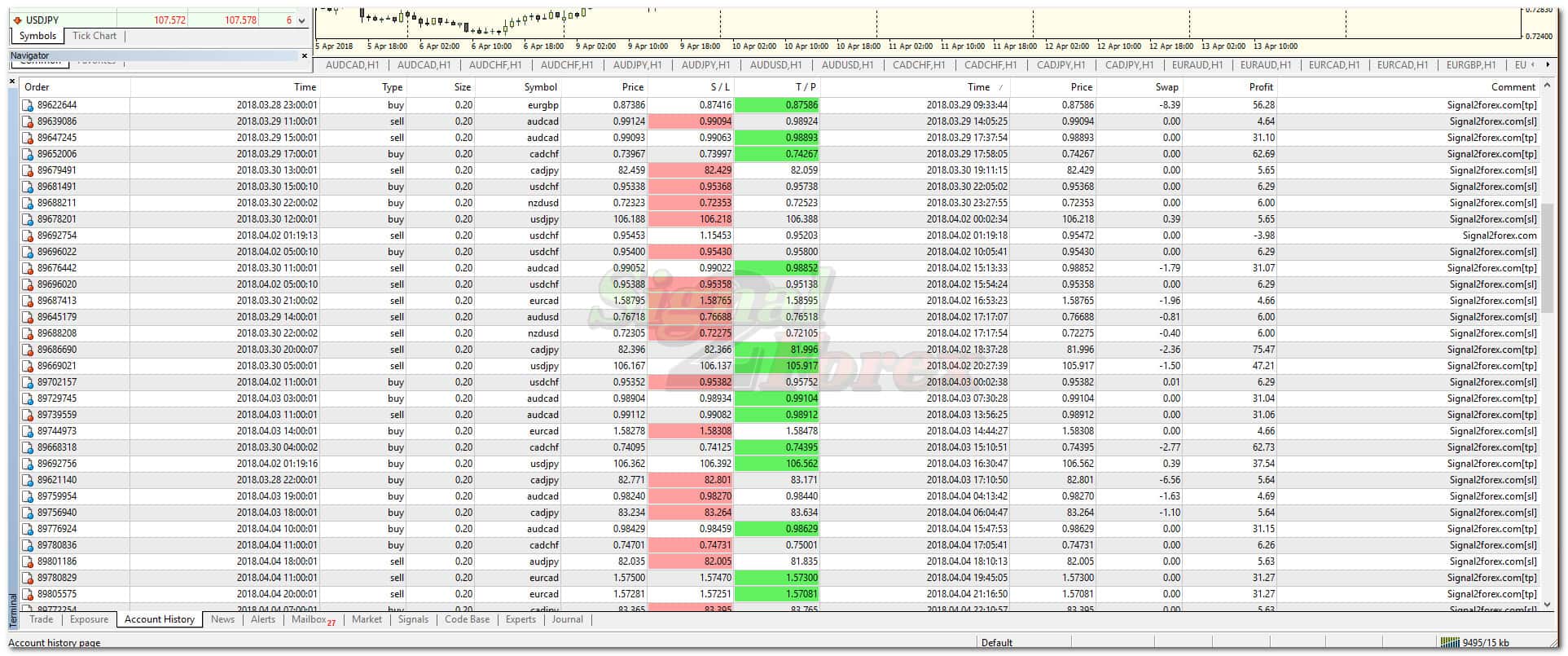
Fig 2: Installing the Scalper EURUSD M5 on MetaTrader 4 — step-by-step visual guide.
4. How to Test the Scalping Robot in Strategy Tester
The Strategy Tester in MetaTrader 4 allows you to backtest and optimise the scalping robot before considering it for live trading. Follow these steps:
Step-by-Step Testing Guide
- Open Strategy Tester — in MT4, go to View → Strategy Tester
- Select the robot — choose Scalper EURUSD M5 from the dropdown menu
- Choose instrument — select EURUSD as the trading instrument
- Select timeframe — choose M5 (the robot’s native timeframe)
- Set testing period — choose a date range (e.g., 2015-2020) for comprehensive backtesting
- Choose modelling quality — select “Every tick” for the most accurate results
- Click “Start” — begin the backtest and wait for the results
- Review results — analyse key metrics: profit factor, win rate, drawdown, and total trades
Optimisation Tips
- Test different periods — test the robot on various market conditions (trending, ranging, volatile)
- Adjust lot sizes — experiment with different lot sizes to find the optimal risk-reward balance
- Check spread sensitivity — the robot requires a maximum spread of 1.0 (10). Ensure your broker meets this requirement
- Monitor drawdown — aim for a maximum drawdown below 20% for sustainable trading
- Compare with other settings — try different indicator parameters to optimise performance
💡 Pro Tip: The test version is identical to the full version in terms of strategy logic — the only difference is that it is time-limited and designed for the Strategy Tester. This makes it an excellent tool for evaluating the robot’s performance before purchasing.
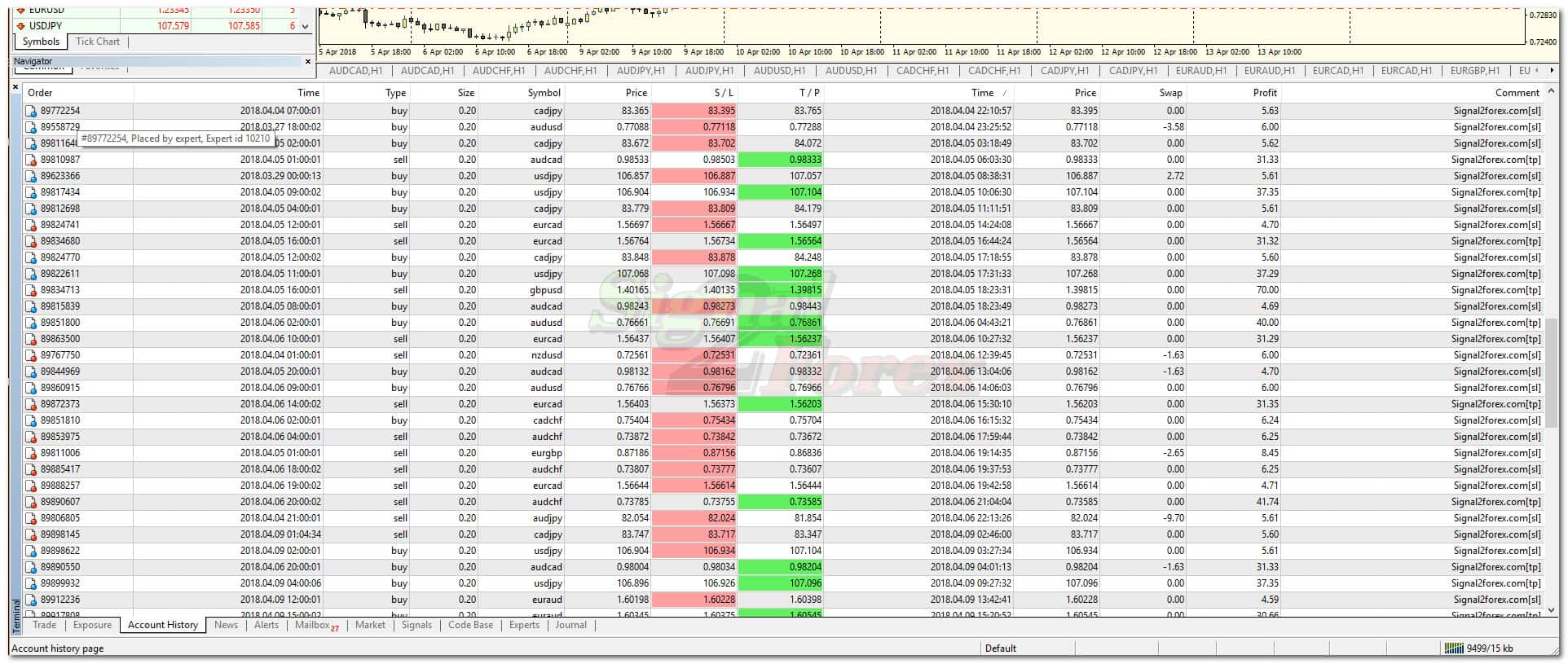
Fig 3: MetaTrader 4 Strategy Tester — testing the Scalper EURUSD M5 on historical data.

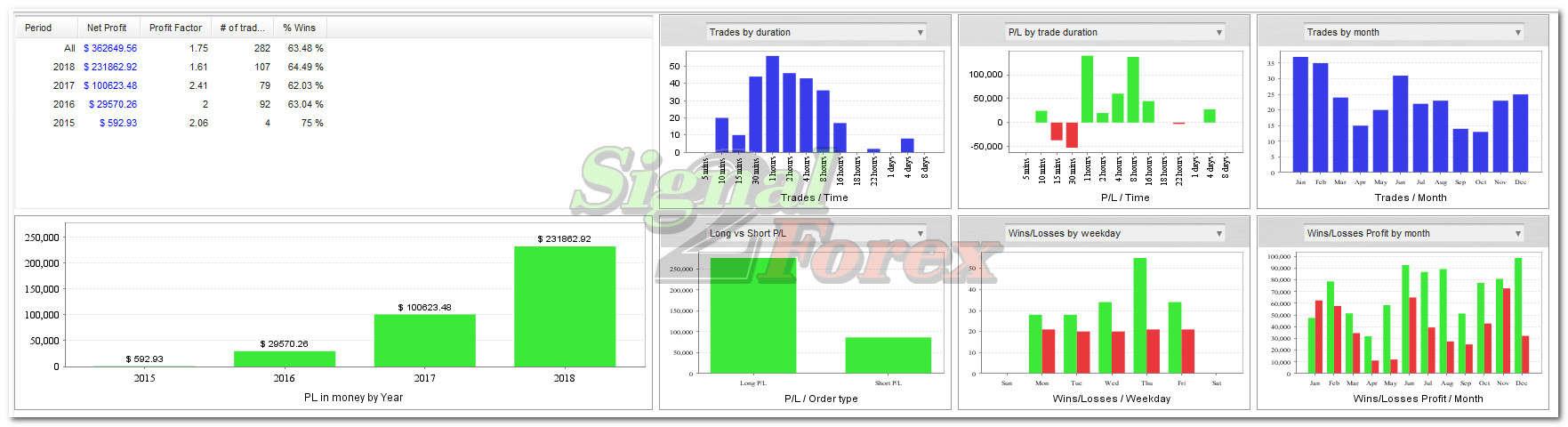
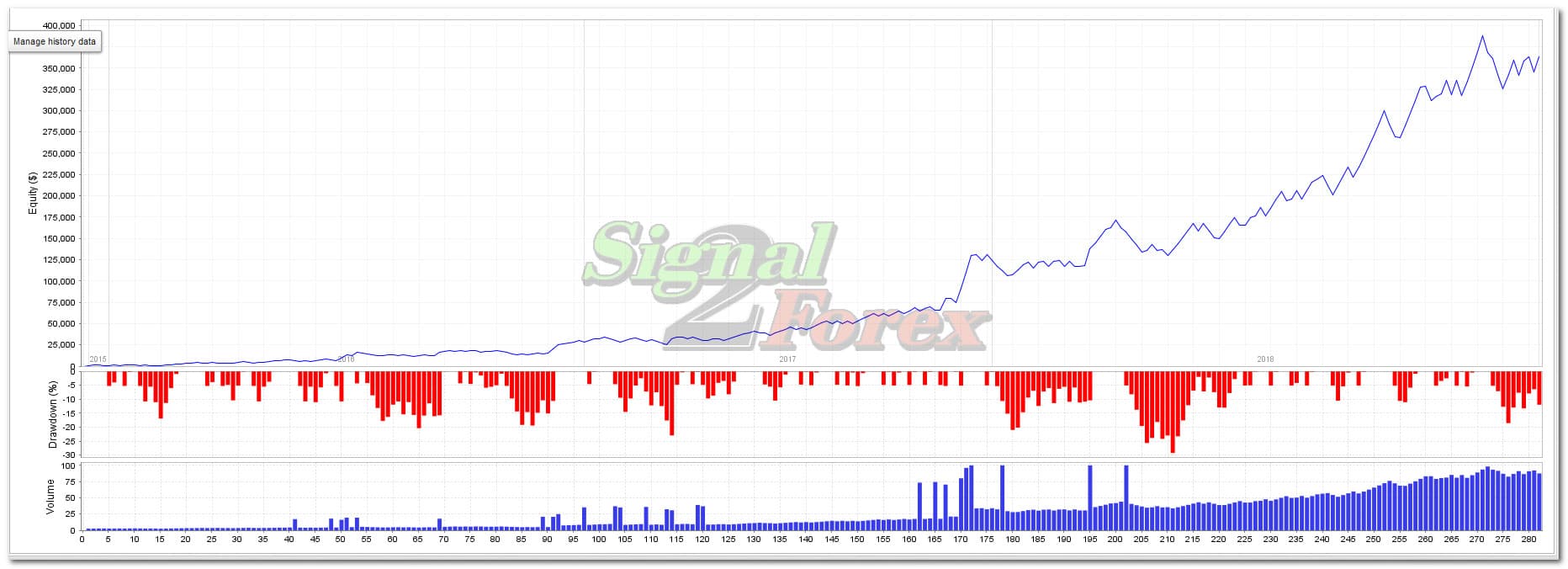
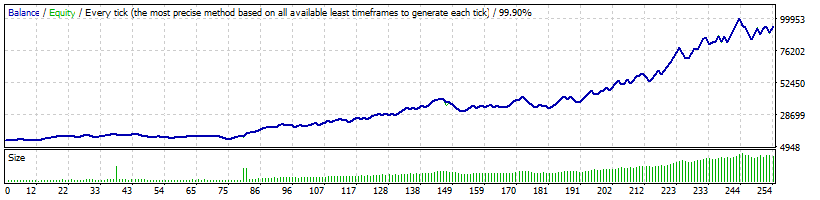
Fig 4: Backtest results showing profit factor, win rate, and drawdown metrics.

Fig 5: Optimisation results — comparing different parameter sets for the scalping robot.
5. Scalping Robot Specifications & Requirements
Before downloading and testing the Scalper EURUSD M5, review the system requirements and broker recommendations:
| Requirement | Specification |
|---|---|
| Trading Platform | MetaTrader 4 (MT4) |
| Timeframe | M5 (5 minutes) |
| Currency Pair | EURUSD |
| Minimum Balance | $100 USD (or $1 on a cent account) |
| Recommended Broker | Any ECN broker with low spreads |
| Maximum Spread | 1.0 (10) |
| VPS Required | Recommended for 24/5 uninterrupted trading |
| Account Type | Any (Standard, ECN, Micro, Cent, PRO) |
| License | Free (Test Version — Strategy Tester only) |
📌 Important Note: The minimum balance requirement in the terminal should be $100. If you are not able to invest $100, you can open a cent account with an investment of as little as $1 or more.
6. Free Scalping Robot Reference Table
Use this reference table to quickly find key information about the Scalper EURUSD M5, compare it with other free scalping robots, and follow installation and testing checklists.
Part 1: Robot Specifications
Part 2: Best Free Scalping Robots Comparison
| Robot Name | Platform | Timeframe | Currency Pair | Key Feature | Best For |
|---|---|---|---|---|---|
| Scalper EURUSD M5 | MT4 | M5 | EURUSD | 8 indicators + neural network | Testing strategies |
| Dark Moon EA | MT4 | Any | Any | 500+ reviews, configurable | Scalpers |
| Dark Venus EA | MT4 | Any | Any | Bollinger Bands + martingale | High-risk traders |
| RRS Grid Scalping | MT4 | Any | Any | Grid strategy | Grid trading |
| PFx Forex Scalper EA | MT4 | M1-M5 | Any | Small price fluctuations | Short-term scalpers |
Part 3: Installation Checklist
Part 4: Testing Checklist
7. Frequently Asked Questions (FAQ)
What is a scalping bot?
A scalping bot is an automated trading robot that executes many small trades to profit from tiny price movements. It typically holds positions for seconds to minutes and requires low spreads and fast execution.
Is this scalping bot really free?
Yes, this is a free test version of the Scalper EURUSD M5 robot. You can download and test it in the Strategy Tester at no cost. The test version is identical to the full version in strategy logic but is time-limited.
What are the system requirements?
You need MetaTrader 4, a PC or VPS with 24/5 online capability, and a broker account (any ECN account recommended). The minimum balance should be $100 (or $1 on a cent account).
How do I install the scalping bot on MT4?
Download the robot, unzip the archive, copy .ex4 files to MQL4/Experts and indicator files to MQL4/Indicators, restart MT4, and attach the EA to the EURUSD M5 chart. Enable “Allow live trading” in the settings.
Can I use this bot on a live account?
The test version is designed for the Strategy Tester only. For live trading, please purchase the full version from the product page.
What is the difference between test and full version?
The test version is for backtesting and optimisation in the Strategy Tester and is time-limited. The full version is for live trading with all features enabled and no time restrictions.
Does this robot work on MT5?
No, this robot is specifically designed for MetaTrader 4 (MT4). For MT5, please check our other robots.
8. Need Help? Contact Us
Our support team is ready to assist you with any questions about installation, setup, or testing the Scalper EURUSD M5.
📌 Support Hours: Our team is available 24/5 via WhatsApp, Telegram, and Live Chat. We respond to all inquiries within 24 hours on business days.
9. Conclusion
The Scalper EURUSD M5 is a powerful free scalping bot for MT4 that offers traders the opportunity to test a sophisticated scalping strategy with 8 indicators and a neural network — completely free. Whether you are a beginner exploring automated trading or an experienced trader evaluating new strategies, this test version provides real value without any financial commitment.
Key takeaways:
- ✅ The Scalper EURUSD M5 is a free test version for the MT4 Strategy Tester
- ✅ It combines 8 technical indicators with a light neural network for signal filtering
- ✅ The robot is specifically optimised for EURUSD on the M5 timeframe
- ✅ Follow the step-by-step installation guide to set up the robot correctly
- ✅ Use the Strategy Tester to backtest and optimise the robot’s performance
- ✅ Use the reference tables above for quick access to specifications and checklists
📌 Final Advice: Start by downloading the test version and running it through the Strategy Tester on historical data. Once you are confident in the robot’s performance, consider purchasing the full version for live trading. The journey to automated scalping success starts with testing and understanding the strategy.
Continue your trading education — explore the guides below to deepen your understanding of automated trading and technical analysis.
Updated: June 2026
FAQ
Free Scalping Bot for MT4 — Download Scalper EURUSD M5 (Test Version 2026)
Looking for a free scalping bot for MT4? The Scalper EURUSD M5 is a powerful automated trading robot designed specifically for the EURUSD currency pair on the M5 timeframe. This test version allows you to download, install, and test the scalping strategy in the MetaTrader 4 Strategy Tester — completely free. In this guide, we’ll cover how the robot works, how to install it, and how to test it effectively.
1. What Is This Free Scalping Robot?
The Scalper EURUSD M5 is a free test version of an automated scalping Expert Advisor (EA) designed for MetaTrader 4 (MT4). It is specifically optimised for the EURUSD currency pair on the M5 (5-minute) timeframe.
📌 Key Definition: A scalping bot is an automated trading robot that executes many small trades to profit from tiny price movements. It typically holds positions for seconds to minutes and requires low spreads and fast execution.
Video: Scalper EURUSD M5 — overview and demonstration.
Key Specifications
- Platform: MetaTrader 4 (MT4)
- Timeframe: M5 (5 minutes)
- Currency Pair: EURUSD
- Indicators: 8 built-in indicators (ATR, Bollinger Bands, Moving Average, Heiken Ashi, Ichimoku, Linear Regression, Parabolic SAR, Pivot Points)
- Money Management: Included
- Neural Network: Light neural network for signal filtering
- Max Spread: 1.0 (10)
- Take Profit / Stop Loss: Automatic, 20 pips
- Trade Duration: 15 minutes – 16 hours
- Lot Size Range: 0.01 – 100
- Price: Free (Test Version for Strategy Tester)
Fig 1: Scalper EURUSD M5 in action — automated scalping trades on the EURUSD M5 chart.
How the Scalping Strategy Works
The scalping strategy combines 8 technical indicators with a light neural network to filter trading signals. The robot analyses the market on the M5 timeframe and executes trades when all conditions are met:
- Entry: The robot enters a trade when the neural network confirms a high-probability scalping signal based on the 8 indicators
- Exit: Trades are closed automatically at 20 pips take-profit or stop-loss, or earlier if the neural network identifies a reversal
- Risk Management: Fixed lot sizes with the ability to adjust risk parameters
⚠️ Important: This is a test version designed for the Strategy Tester only. For live trading, please purchase the full version.
2. Best Free Scalping Robots for MT4 — Comparison
There are several free scalping robots available for MT4. Here is how the Scalper EURUSD M5 compares to other popular options:
| Robot Name | Platform | Timeframe | Currency Pair | Key Feature | Best For |
|---|---|---|---|---|---|
| Scalper EURUSD M5 | MT4 | M5 | EURUSD | 8 indicators + neural network, test version | Testing scalping strategies |
| Dark Moon EA | MT4 | Any | Any | 500+ reviews, highly configurable | Scalpers of all levels |
| Dark Venus EA | MT4 | Any | Any | Bollinger Bands + martingale | High-risk traders |
| RRS Grid Scalping | MT4 | Any | Any | Grid strategy | Grid trading enthusiasts |
| PFx Forex Scalper EA | MT4 | M1-M5 | Any | Small price fluctuations strategy | Short-term scalpers |
📌 Why Choose Scalper EURUSD M5? This robot is specifically optimised for EURUSD on M5 and uses a unique combination of 8 indicators and a neural network — making it a powerful tool for testing scalping strategies on this specific pair.
3. How to Download and Install the Scalping Bot
Follow these simple steps to download and install the Scalper EURUSD M5 on MetaTrader 4:
Step-by-Step Installation Guide
- Download the robot — add the product to your cart and complete the checkout process (price: $0.00)
- Unzip the archive — extract the downloaded zip file to access the EA and indicator files
- Open MT4 Data Folder — open MetaTrader 4, go to File → Open Data Folder
- Copy EA files — copy the
.ex4files to MQL4 → Experts - Copy indicator files — copy the indicator files to MQL4 → Indicators
- Restart MT4 — close and reopen MetaTrader 4
- Open EURUSD M5 chart — open a chart for EURUSD on the M5 timeframe
- Attach the EA — drag the EA from the Navigator panel to the chart
- Enable live trading — check “Allow live trading” in the EA settings
- Verify installation — look for the smiley face in the top-right corner of the chart
Common Installation Issues & Fixes
| Issue | Possible Cause | Solution |
|---|---|---|
| EA not appearing in Navigator | Files placed in wrong folder | Ensure .ex4 files are in MQL4/Experts, not Indicators |
| EA appears greyed out | Live trading not enabled | Check “Allow live trading” in EA settings |
| No smiley face | EA not properly attached or disabled | Restart MT4 and re-attach the EA to the chart |
| Indicators not loading | Indicator files not in correct folder | Ensure all indicator files are in MQL4/Indicators |
Fig 2: Installing the Scalper EURUSD M5 on MetaTrader 4 — step-by-step visual guide.
4. How to Test the Scalping Robot in Strategy Tester
The Strategy Tester in MetaTrader 4 allows you to backtest and optimise the scalping robot before considering it for live trading. Follow these steps:
Step-by-Step Testing Guide
- Open Strategy Tester — in MT4, go to View → Strategy Tester
- Select the robot — choose Scalper EURUSD M5 from the dropdown menu
- Choose instrument — select EURUSD as the trading instrument
- Select timeframe — choose M5 (the robot’s native timeframe)
- Set testing period — choose a date range (e.g., 2015-2020) for comprehensive backtesting
- Choose modelling quality — select “Every tick” for the most accurate results
- Click “Start” — begin the backtest and wait for the results
- Review results — analyse key metrics: profit factor, win rate, drawdown, and total trades
Optimisation Tips
- Test different periods — test the robot on various market conditions (trending, ranging, volatile)
- Adjust lot sizes — experiment with different lot sizes to find the optimal risk-reward balance
- Check spread sensitivity — the robot requires a maximum spread of 1.0 (10). Ensure your broker meets this requirement
- Monitor drawdown — aim for a maximum drawdown below 20% for sustainable trading
- Compare with other settings — try different indicator parameters to optimise performance
💡 Pro Tip: The test version is identical to the full version in terms of strategy logic — the only difference is that it is time-limited and designed for the Strategy Tester. This makes it an excellent tool for evaluating the robot’s performance before purchasing.
Fig 3: MetaTrader 4 Strategy Tester — testing the Scalper EURUSD M5 on historical data.
Fig 4: Backtest results showing profit factor, win rate, and drawdown metrics.
Fig 5: Optimisation results — comparing different parameter sets for the scalping robot.
5. Scalping Robot Specifications & Requirements
Before downloading and testing the Scalper EURUSD M5, review the system requirements and broker recommendations:
| Requirement | Specification |
|---|---|
| Trading Platform | MetaTrader 4 (MT4) |
| Timeframe | M5 (5 minutes) |
| Currency Pair | EURUSD |
| Minimum Balance | $100 USD (or $1 on a cent account) |
| Recommended Broker | Any ECN broker with low spreads |
| Maximum Spread | 1.0 (10) |
| VPS Required | Recommended for 24/5 uninterrupted trading |
| Account Type | Any (Standard, ECN, Micro, Cent, PRO) |
| License | Free (Test Version — Strategy Tester only) |
📌 Important Note: The minimum balance requirement in the terminal should be $100. If you are not able to invest $100, you can open a cent account with an investment of as little as $1 or more.
6. Free Scalping Robot Reference Table
Use this reference table to quickly find key information about the Scalper EURUSD M5, compare it with other free scalping robots, and follow installation and testing checklists.
Part 1: Robot Specifications
Part 2: Best Free Scalping Robots Comparison
| Robot Name | Platform | Timeframe | Currency Pair | Key Feature | Best For |
|---|---|---|---|---|---|
| Scalper EURUSD M5 | MT4 | M5 | EURUSD | 8 indicators + neural network | Testing strategies |
| Dark Moon EA | MT4 | Any | Any | 500+ reviews, configurable | Scalpers |
| Dark Venus EA | MT4 | Any | Any | Bollinger Bands + martingale | High-risk traders |
| RRS Grid Scalping | MT4 | Any | Any | Grid strategy | Grid trading |
| PFx Forex Scalper EA | MT4 | M1-M5 | Any | Small price fluctuations | Short-term scalpers |
Part 3: Installation Checklist
Part 4: Testing Checklist
7. Frequently Asked Questions (FAQ)
What is a scalping bot?
A scalping bot is an automated trading robot that executes many small trades to profit from tiny price movements. It typically holds positions for seconds to minutes and requires low spreads and fast execution.
Is this scalping bot really free?
Yes, this is a free test version of the Scalper EURUSD M5 robot. You can download and test it in the Strategy Tester at no cost. The test version is identical to the full version in strategy logic but is time-limited.
What are the system requirements?
You need MetaTrader 4, a PC or VPS with 24/5 online capability, and a broker account (any ECN account recommended). The minimum balance should be $100 (or $1 on a cent account).
How do I install the scalping bot on MT4?
Download the robot, unzip the archive, copy .ex4 files to MQL4/Experts and indicator files to MQL4/Indicators, restart MT4, and attach the EA to the EURUSD M5 chart. Enable “Allow live trading” in the settings.
Can I use this bot on a live account?
The test version is designed for the Strategy Tester only. For live trading, please purchase the full version from the product page.
What is the difference between test and full version?
The test version is for backtesting and optimisation in the Strategy Tester and is time-limited. The full version is for live trading with all features enabled and no time restrictions.
Does this robot work on MT5?
No, this robot is specifically designed for MetaTrader 4 (MT4). For MT5, please check our other robots.
8. Need Help? Contact Us
Our support team is ready to assist you with any questions about installation, setup, or testing the Scalper EURUSD M5.
📌 Support Hours: Our team is available 24/5 via WhatsApp, Telegram, and Live Chat. We respond to all inquiries within 24 hours on business days.
9. Conclusion
The Scalper EURUSD M5 is a powerful free scalping bot for MT4 that offers traders the opportunity to test a sophisticated scalping strategy with 8 indicators and a neural network — completely free. Whether you are a beginner exploring automated trading or an experienced trader evaluating new strategies, this test version provides real value without any financial commitment.
Key takeaways:
- ✅ The Scalper EURUSD M5 is a free test version for the MT4 Strategy Tester
- ✅ It combines 8 technical indicators with a light neural network for signal filtering
- ✅ The robot is specifically optimised for EURUSD on the M5 timeframe
- ✅ Follow the step-by-step installation guide to set up the robot correctly
- ✅ Use the Strategy Tester to backtest and optimise the robot’s performance
- ✅ Use the reference tables above for quick access to specifications and checklists
📌 Final Advice: Start by downloading the test version and running it through the Strategy Tester on historical data. Once you are confident in the robot’s performance, consider purchasing the full version for live trading. The journey to automated scalping success starts with testing and understanding the strategy.
Continue your trading education — explore the guides below to deepen your understanding of automated trading and technical analysis.
Updated: June 2026


 Signal2forex.com - Best Forex robots and signals


